If you have missed the last training session on CanLII or just want to have another look, here is a summary of what was said.
CanLII stands for Canadian Legal Information Institute. It is a non-profit organization that started in 2001.
- It was funded in a joint effort by the Federation of Law Societies.
- In general, it is part of a larger free access to the law movement. This website is available to anyone with internet access, with no cost to the user at any point.
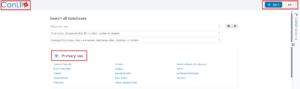
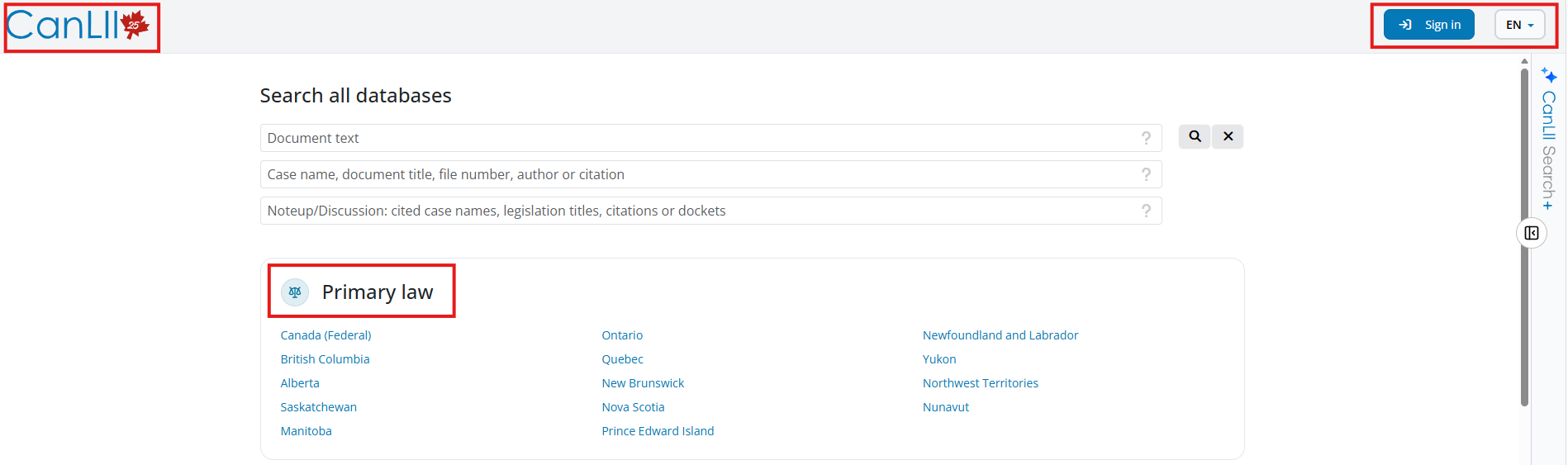
In the top right corner, there is a drop-down box if you wish to change the language of the website, their interface is bilingual, but it will not change the language of the case or the legislation you are looking at. To do that you will have to change the language from the document you are viewing. It is a separate function because not all content is available in both languages. You also have the sign in button. You do not need an account to use CanLII. It is only if you wish to use their other functionalities, such as myCanLII and the CanLII AI tool. On the other side, the CanLII logo will bring you back to the homepage when you click on it.
Primary law
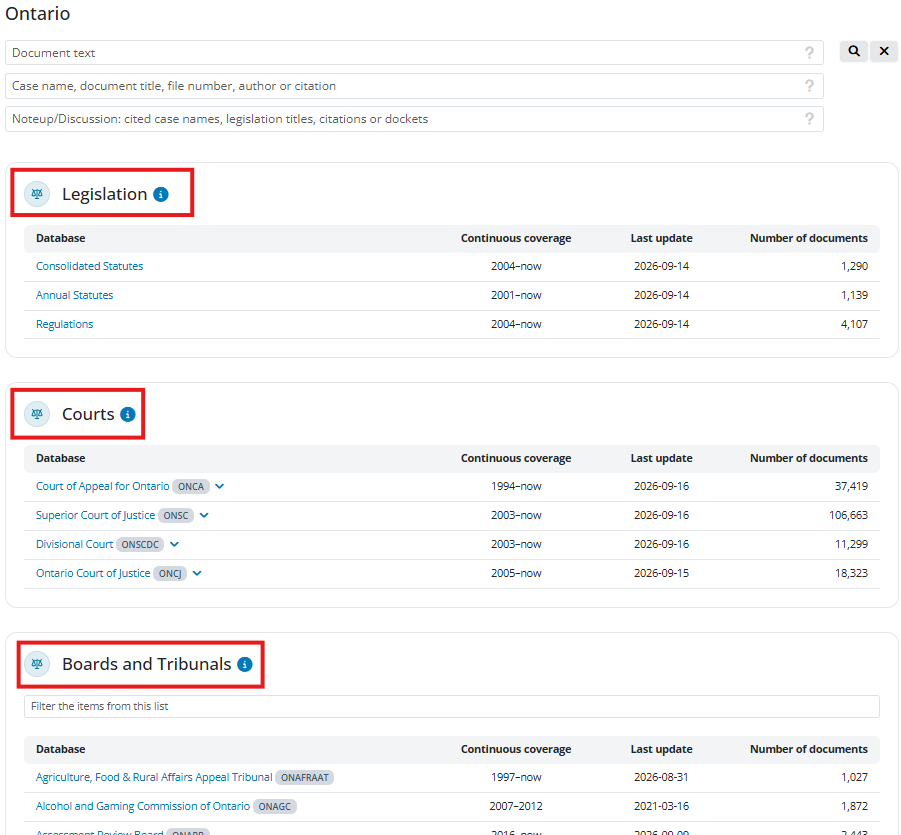
Under the search section, we have Primary law. This section contains legislation and decisions from all over Canada. Here is the page for Ontario:
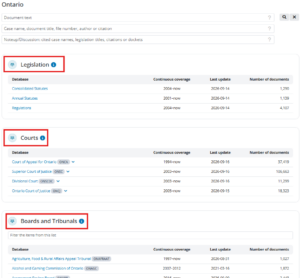
You can then use the search box at the top, and it will search things from Ontario only or you can browse through the list of databases. From here, you have access to legislation, Courts and Boards and Tribunals decisions from Ontario. The Federal page looks very similar.
Commentary
Commentary refers to the secondary resources that CanLII has, meaning materials about the primary materials. That collection contains a few different types of commentary materials, so to get to the commentary, you can click on See all and then you can choose which type of document you want to browse, books, articles, reports, etc. It will then show you a list of the different publications or where the material is from.

I want to highlight three items under books. They can all be found under CanLII (Canadian Legal Information Institute).
Searching
You have three options to begin your research. If you use the boxes from the main page, you are by default searching everything on CanLII – all federal and provincial legislation, cases, decisions, commentary, etc.

Document text
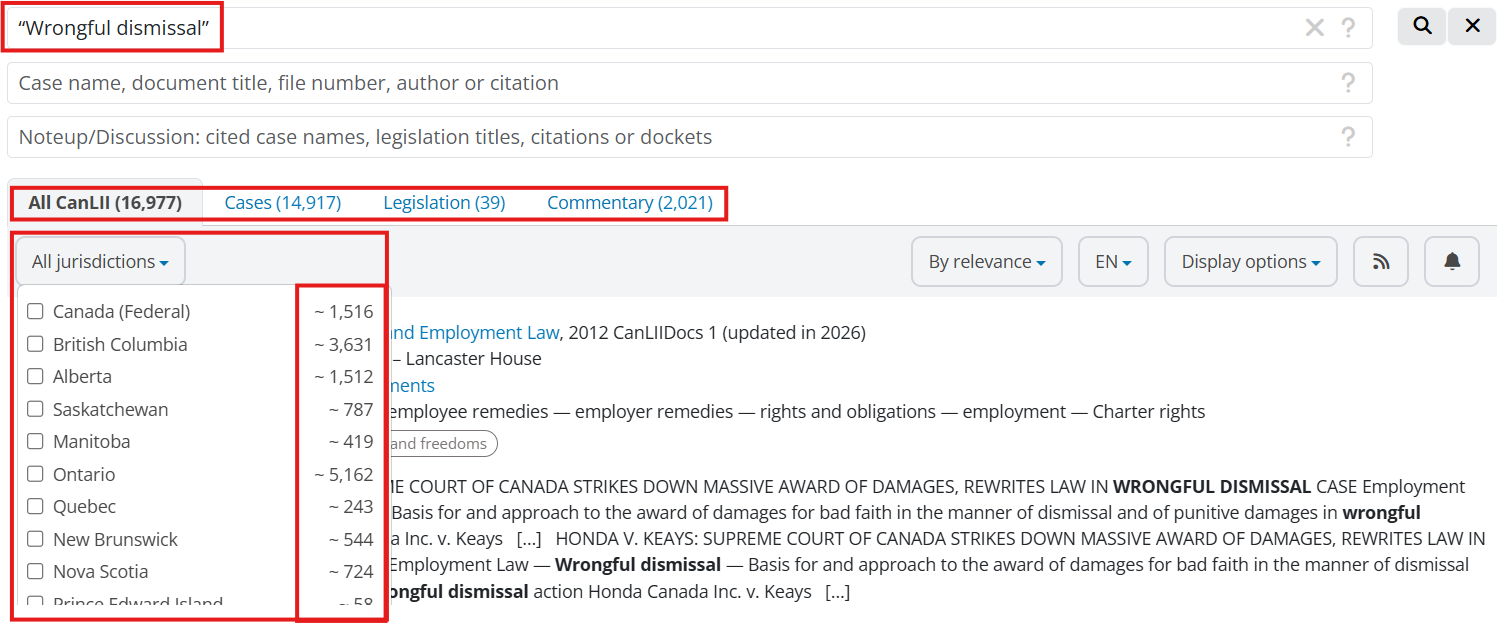
The first one, “Document text”, is your keyword search. It is in this box that you will use your Boolean terms and keywords.
For example, you can use this box when you do not know exactly the case you are looking for, you have larger question or you are looking for something on a specific topic. This box will not predict what you are typing.
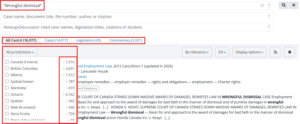
The first tab says “All CanLII”. As you look along the rows, you can see where those are (cases, legislation and commentary).
That first tab for all of CanLII – you can do an immediate sort right here by jurisdiction. Next to each jurisdiction is a number – that is how many results per jurisdiction.
If you are doing this search to find case law, you want to move over to the next tab, which is the cases tab. There are four options, which you can see just below the tab – jurisdictions, court and tribunals, date, and subjects.

For the first, jurisdiction. It is the same as the one we just saw. When you select a province, you will get the line at the top. It says “there are X decisions from the Supreme Court of Canada that match the search” – add them to your results. This means the results in general are just from the province you selected, which is what you want, but you might be missing some key upper court decisions. It will only ask for the Supreme Court, as it is the highest court.
If you want to do some custom court level searching, this is where you use the next set of filters, All Courts and Tribunals. You will be able to select precisely which courts you want to see results from. The default is all courts and all tribunals.
Next filter is date. The default, of course, is any date. You can make this more specific – with the preset options, last week, last three months, last year, last three years, last ten years, and then you can get into some specific date is and date range.
The last filter is Subjects. These classifications are available as a filter, and are also displayed in the search results list (as bubbles). Note though that these are for court decisions only, not tribunals.
Now if you were looking for legislation in your results, you would use the next tab over – legislation. First up, there is a similar jurisdiction filter, which will let you select the province, territory, or federal.
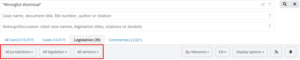
The second filter is the type of legislation, it will let you pick constitutional acts, statutes or regulations. You may see some options here that are not available for the jurisdiction you are working in. For example, historical revised statutes are not available for Ontario.
The final filter is a version or date filter. CanLII does offer point-in-time versions of legislation – early 2000s is about as far back as you can go. You can enter a date there and they will bring you to the legislation available on that date.
Under the last tab, commentary, you will see there are four ways to narrow. The first is subjects. The second is type. The third is publication year.

The fourth is sources. This gives you three options for some of the commentary on CanLII – titles from the CanLII authors program, the CanLII connects blogs, and “other sources” which are the non-CanLII authors in the commentary collection. Again, you can combine the filters, but you might find your results dropping rapidly. You can always modify your search from the same page, using the search boxes at the top.
A couple other things to note about the results screen. First off, where it says “By Relevance.” If you click on the down arrow, you can change the order in which your results are appearing.
Next, you have the language option. If you want only French results, you can change it and it will show you only the documents available in French. You can note that it is less than in English, because not all of them have a translation.
You then have the display options. There are two main options, the list and the list with a view of the document.
Case name, document title, file number, author or citation
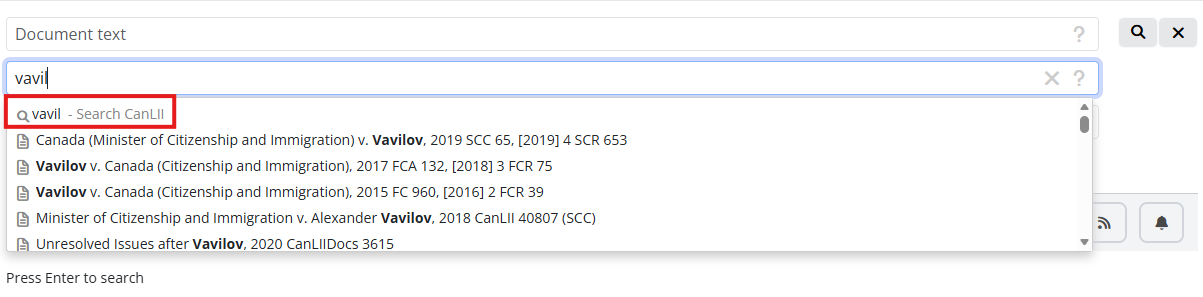
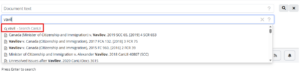
The second box is to find a specific document. For example, if you are looking for Canada v. Vavilov, you start writing and it will give you a list of related documents that you can scroll. You can then click on the document you were looking for, and it will bring you directly to it. CanLII uses a predictive text to suggest results.
If you do not see it in the list, you can start typing and press enter or select the first line. It will then give you a normal list of results.
You can also use that section to find other types of documents, such as legislation. And you will be taken directly to that piece of legislation, the most current version of the title you selected.
Noteup/Discussion
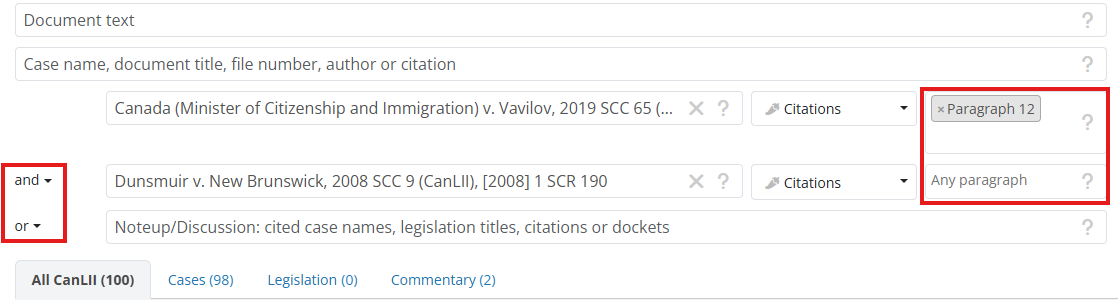
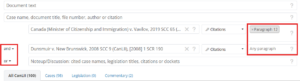
The last box is the Noteup/Discussion box. It will allow you to see the documents that cite a specific case, piece of legislation or other type of document. You can also add specific paragraphs to your search. Same thing if you are looking into a certain Act, you can add one or more sections. That way, you can do a very custom search.
One thing to point out is the “Or” section to the left. It lets you set up a search that searches for something citing Document A or Document B. You can change that to “And”. You can add more documents than that, but this is a great feature if you are trying to narrow down a lot of citing cases to something on a very specific point.
Documents
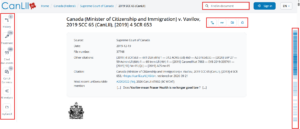
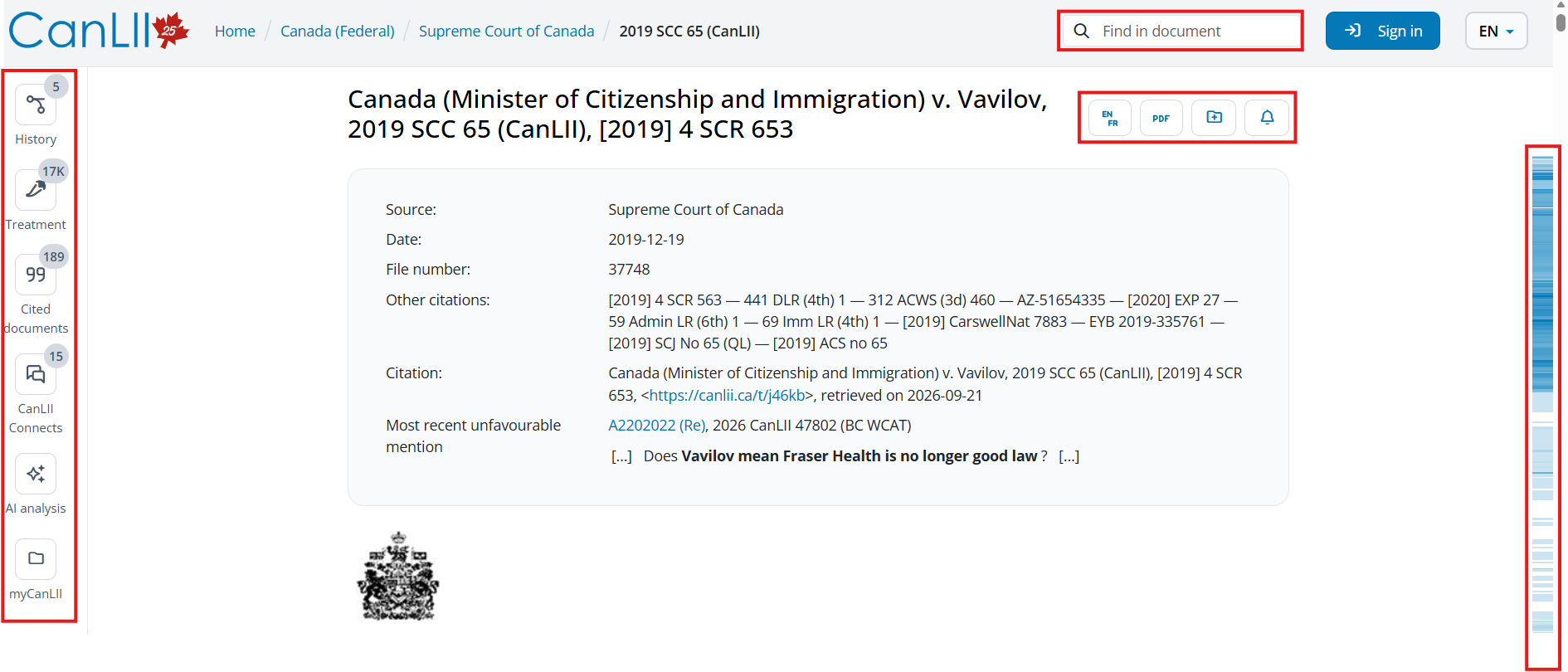
Once you have selected a document, right at the very top here, we have the “Find in document” search bar. Here, you can enter a word or use quotation marks to look for a phrase, hit enter, and this word will be highlighted where it appears on the page. There are also arrows that can help you skip through the document to those appearances and you can also edit your search.
Next thing is the link to toggle between languages. Because this case came from the Supreme Court, it is available in both English and French, so CanLII has both. If you click on it, it will switch to French, but your interface will still be in English.
You also have at the top a PDF link. If you want to download the document or print it.
Immediately underneath is the rest of the case information – date, alternate citations, and then the citation you could reference for finding this on CanLII, you also have a short permanent URL, I encourage you to use this one if you link the decision in a document or in an email. You will be sure that the link will be working long term. Beneath that: Most recent unfavorable mention.
Next is the left sidebar. Clicking on any of those options will open up the information contained within the tab in the same screen as the document you are looking at. First up is History. It lists decisions related to this case. Sometimes a decision is missing or unavailable.
After that is Treatment. The documents that cite this decision specifically. Within this tab, there are three sub sections. The first subsection is everything that cites this decision, including commentary. This is a list of the most recent. The second tab is discussions, documents that discuss the document you are viewing. The jalapeno peppers are to indicate intensity. The highest ranking is five peppers. Blue peppers are discussion and yellow are unfavorable mentions. The third tab is just for the yellow peppers, so unfavorable mentions. You will not get a full list from these tabs; only 10 documents. To see all these documents, click on the Search for all discussing documents at the bottom. This will bring all the search results from the previous screen. You can now add keywords to your search or choose a paragraph. There is no further analysis applied to these results than the peppers. You can also filter results in the same way than showed before.
Next, we have the Cited Documents. These are cases or legislation that are cited within this decision. If it is in blue, you can click on the hyperlinked words, and that will open that document in full. You can also see where it is cited within the decision. Clicking on the eye icon will prompt CanLII to highlight the instances of this piece of legislation within your document, and you can use the arrows in the top right corner to scroll through the decision.
Next is CanLII connect. This will take you out of CanLII and to CanLII Connects, which is a site with related commentary or case summaries from the legal community.
Next is the AI Analysis. You like the name it is an analysis of the case provided by an AI tool. It includes the facts, history, legal issues, reasons and more.
Last one is myCanLII, so if you have an account you can add the decision to your research folder or create an alert.
We have looked at noting up the decision before from the tab on the left hand side, but you can also note-up from within the text of the decision. Looking at a document on CanLII you will find these bubbles with a pen on the right side. When you click on it you have different options. Copy text, copy the citation of this paragraph, copy link, change the language, alerts and finally the citing documents. When the bubble has a number, it tells you that this section has been quoted elsewhere. The blue on the side bar also highlights sections that have been quoted. The darker the blue, the more that section has been cited. You can click on the bar to navigate in the decision or if you hover over it, you will have a view of the paragraph.
If you click on the “Citing Documents” link, you will be sent to the same search-results screen, but this time the results are showing just document that cite to that particular paragraph.
Legislation
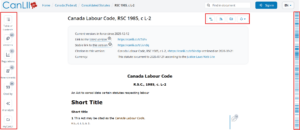
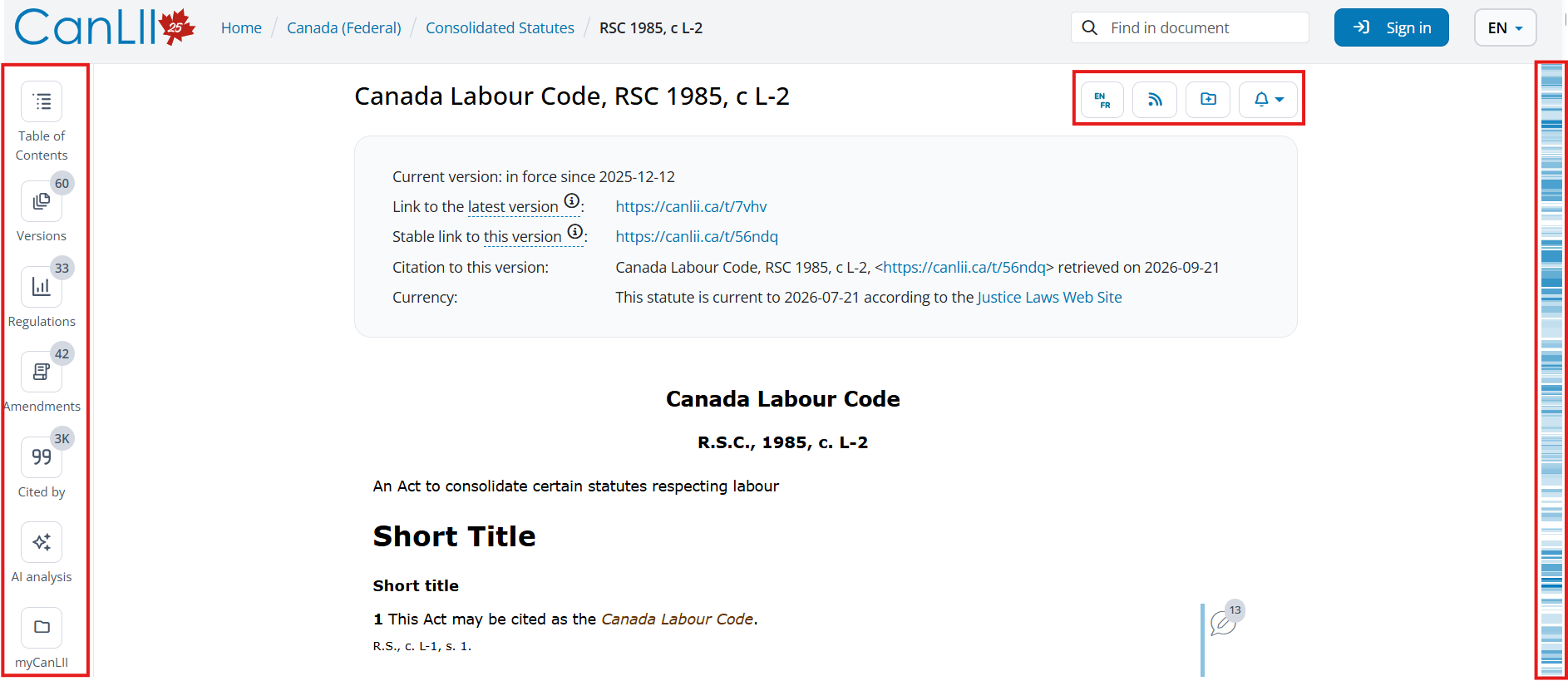
For legislation, it is very similar. You have similar option at the top, like the language. You also have the blue bar on the right, it works the same. Immediately under the name and citation, we have additional information about this document. You have the currency of the legislation prominently displayed. You can also see the last date it was updated and from where just below that. There is also a permanent link.
Moving over to the left-hand side, we have a series of tabs. The first here is the table of contents. When you click on this, we will again get a sidebar that pops out, that you can adjust, that has the table of contents for this document. Up at the top of this tab, you can also see a search box. It will search the content for what you put in there.
Next is the versions tab. The default when you pull up this legislation from a basic search is the current version. You can click here on those blue hyperlinked date ranges to pull up the version of the legislation that was in effect in that specific date range. This will change what you are seeing on the right-hand side. You will note there is a warning at the top in red to indicate this is not the current version.
If you want to compare two versions of the act, you need to select which versions you want to see the difference between. CanLII will go through and highlight differences. You can scroll through those differences using the arrow buttons at the top. You can also select other versions to compare from this page using the drop-down menu at the top.
Next, is the Regulations tab. In force regulations are at the top, repealed, spent, or not in force are at the bottom. There is a filter bar, so you can enter a term here, but it is only looking for that term in the title of the regulation.
Next tab is Amendments. This tracks amendments back to 2001 federally and in Ontario, but the coverage may be different for other jurisdictions. If you click on it, it will take you to the amending statute, the source law. When you click on a document from this list, the tab that says “Amendments” in other legislation now says “amending” and list the legislation this amends.
Finally, the last tab is Cited By. This is one of the ways that you can note up legislation. Just like with decisions, you will only get 10 results here. Click on Search for all citing documents to bring back all the citing documents for this legislation. The third box has the legislation we are looking at, and when you first click over here, it will be for any citation, any section. Again, you can add a section or more, and keywords.
Another way to note up a section is to do that directly from the section you are interested in. You will see on the right hand side that there is a similar quotation bubble. You can click on that and get those same tools, but also a link to citing documents.
CanLII Search+
CanLII Search+ is their new AI functionality. To use it, you will need to create an account, which is free.
It does not work like most AI tools available on legal databases. It will not give you a direct answer or create new content for you, but will instead act as a research assistant, helping you create your search queries and analyze the results. It is not an AI tool that is going to hallucinate; it just maybe will not always give you the best results. It is great if you are not familiar with Boolean terms or if you are having difficulties formulating your queries. It can also be a faster way to find the decision you are looking for.
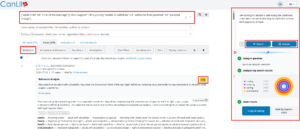
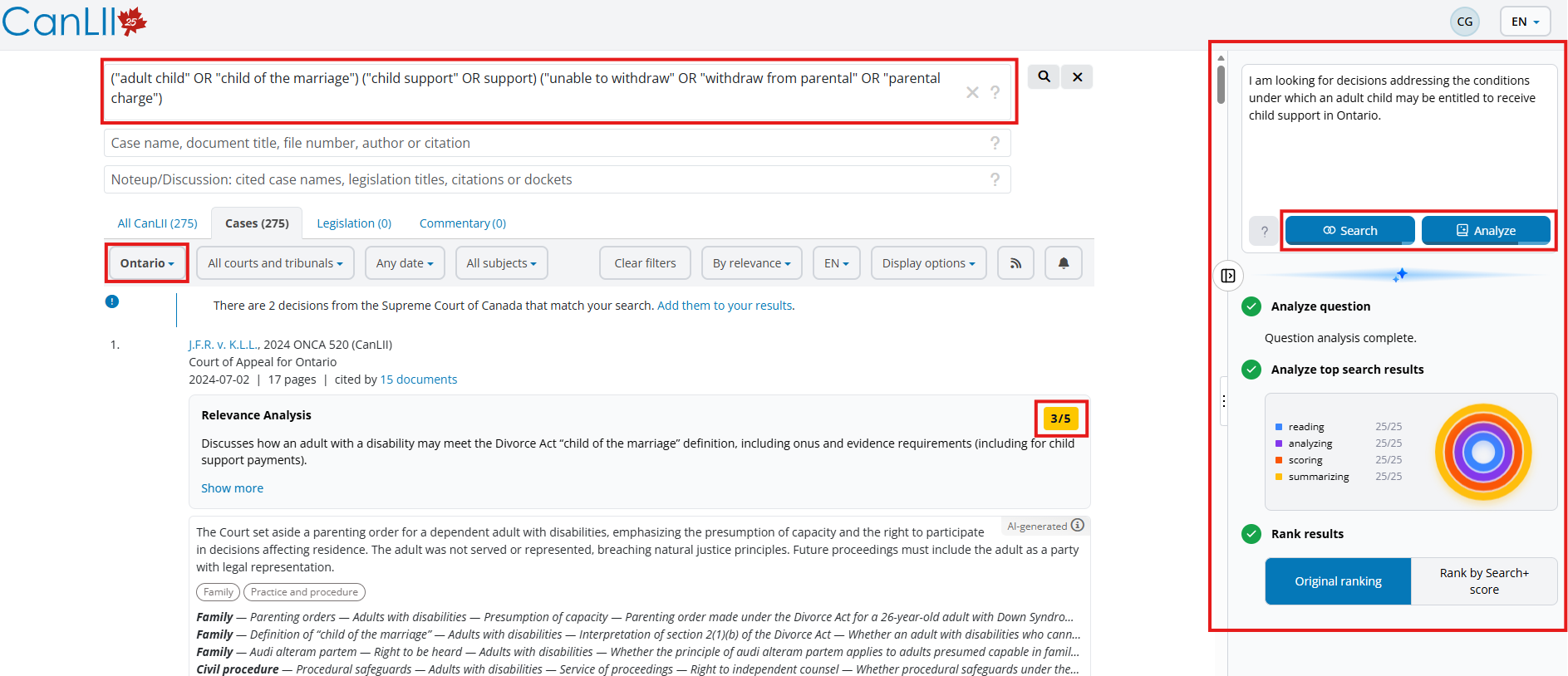
Once you are logged into your account, you will find the tool on the right side of your screen. You just need to write your question in the first box and click on Search.
You will find the query in the first search box of the top of the page, and sometimes it will use the filters. You can then browse the results yourself or you can click on Analyze, and the tool will rate the results out of five. After it is done analyzing, you will see the scores on the right. You might want to check the higher scored decisions first.
The tool is free, but you have a limited amount of research and analysis per day (10 searches and 100 documents analyzed).
Even though this tool does not think for you, you need to be careful when using it like any other AI product. Double check the results and do your own research. You can also use the query it gives you on other databases or modify it. Try different words or Boolean operators.
That is it for the CanLII training, do not forget to check and register to our upcoming training sessions – Library Events